HAKO METALガイドライン

デジタルゴールドを一つずつ彫り出す 2.0

HAKO METALは、Abelianメインネット専用に設計された、コンパクトで低消費電力のASICマイナーです。家庭でのマイニングを想定して設計されており、洗練された金属製筐体の中に、エネルギー効率、静音性、安定した性能を実現しています。このデバイスを使用することで、個人はマイニング報酬を得ながら、Abelianネットワークのセキュリティ確保に積極的に参加できます。
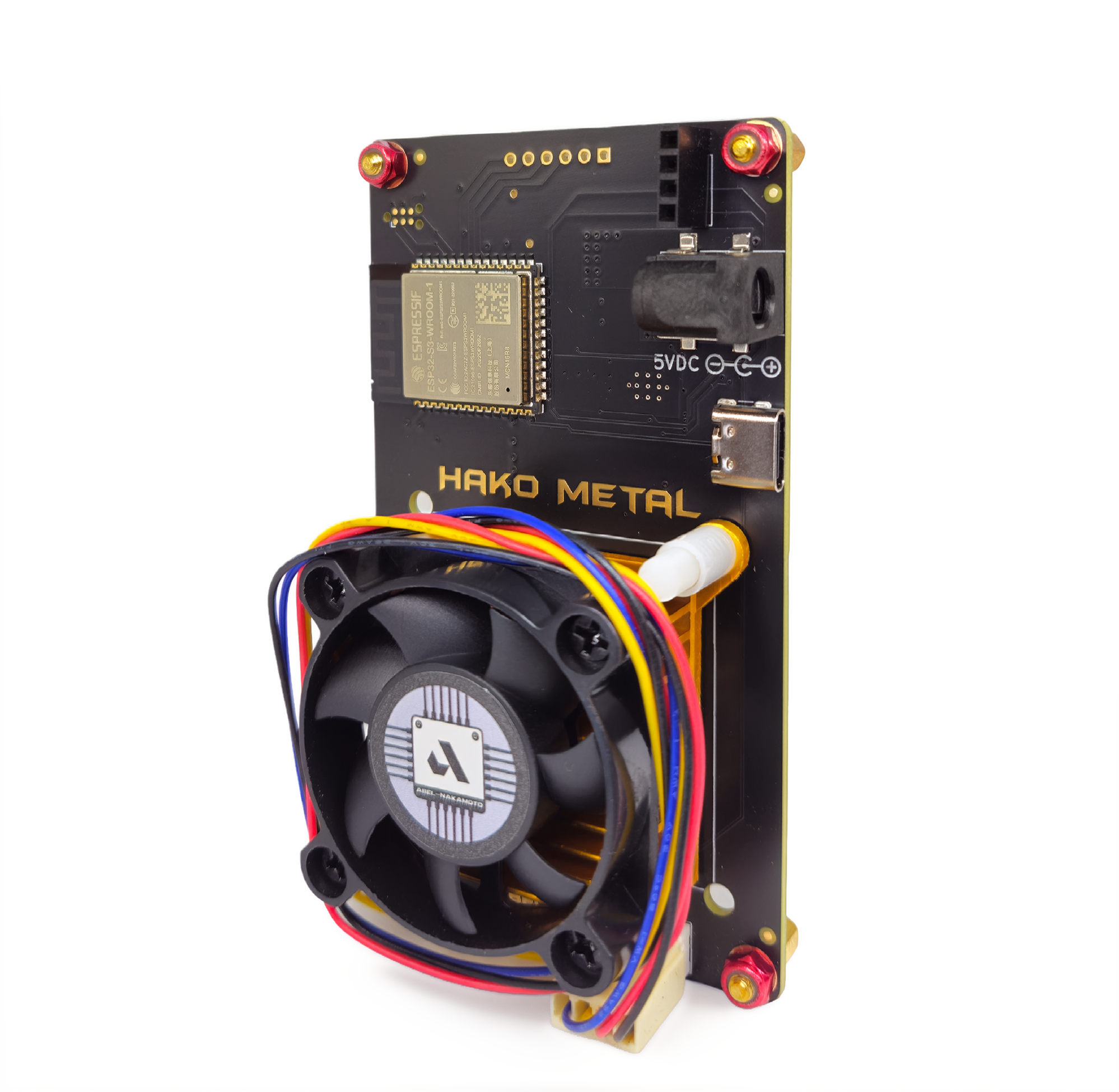
ポスト量子時代のための

ABEL-NAKAMOTOマイナー

効率性、アクセス性、そしてポスト量子耐性を重視して設計されたHAKO METALは、個人が自宅からアーベル型レイヤー1ネットワークのセキュリティ確保に直接参加することを可能にします。

HAKO METALを今すぐ手に入れよう

前提条件

Before starting, please prepare the following:

➤ HAKO METAL device
•  Including the built-in screen, cooling fans, and power supply

➤ 12V Power Adapter
•  Included with the device or a compatible adapter

➤ Internet-connected device
• A smartphone, tablet, or computer with Wi-Fi access

➤ Abelian Wallet
• Install the Abelian Desktop Wallet or Mobile Wallet to obtain your ABEL wallet address
(Download from the official website pqabelian.io or trusted community links)

➤ Stable Wi-Fi network
• Required for the miner to connect to the mining pool

HAKO METAL セットアップチュートリアル:

Mining ABEL on ABEL-NAKAMOTO Pool

このガイドでは、HAKO METALをセットアップして、ABEL-NAKAMOTOマイニングプールを使用してAbelian($ABEL)のマイニングを開始する手順を説明します。所要時間は約10~15分です。

This guide walks you through setting up your HAKO METAL to start mining Abelian ($ABEL) using the ABEL-NAKAMOTO Mining Pool. The process takes about 10–15 minutes.
Step 1: Power On the Miner
  1. Connect the OLED screen to the miner board (if it is not already attached).
  2. Plug the 12V power adapter into the miner.
  3. Ensure the polarity is correct to avoid damage.

Once powered on:

  • The screen will light up.
  • The fans will start spinning.
  • After 10–30 seconds, the screen will display key information, including:
    • Stratum Host (pool address)
    • Local IP Address (example: 192.168.x.x)

Tip: Take a photo of the screen so you can easily reference the IP address later.

Step 2: Connect to the Miner’s Wi-Fi Hotspot
  1. On your phone or computer, go to Wi-Fi settings.
  2. Look for a network named Bitaxe_XXXX (XXXX will be random digits).
  3. Connect to this network. No password is required. If it doesn’t auto-open a setup page, open a browser and go to: http://192.168.4.1 or http://192.168.1.112.
Step 3: Configure Wi-Fi Connection

In the AxeOS dashboard web interface:

  1. Set a Hostname (e.g., MyBitaxe or MyMiner).
  2. Select or manually enter your home Wi-Fi SSID (2.4GHz only).
  3. Enter the Wi-Fi password (case-sensitive).
  4. Click Save or Apply.

The miner will restart and connect to your home Wi-Fi:

  • Wait 1–2 minutes.
  • The OLED screen will now display a new IP address assigned by your router (e.g., 192.168.1.112).

Important: From now on, the miner will automatically reconnect to this Wi-Fi network whenever it powers on.

Step 4: Register on ABEL-NAKAMOTO Mining Pool

Open a browser and go to: https://abel-nakamoto.xyz/

  1. Register a new account.
  2. After logging in, go to Settings.
  3. Click Add Account.

Fill in the form:

  • Tag (Name): Example: ASIC mining or Bitaxe1
  • Description (Optional): Example: My home Bitaxe miner
  • Wallet Address: Paste your ABEL wallet address from your desktop or mobile wallet.

Recommended: Use the long wallet address for mining compatibility.

  • Long address: Usually 2000+ characters, starting with abe1 or 0001.
  • Short address: 66 characters (may work, but long addresses are safer for mining pools).

Click Add or Save.

Once added, you will see your pool credentials, including:

  • Username (a long string like d892a6c1…).
  • Password (another string).

Copy both values, Username and Password, in the next step.

Step 5: Link the Miner to Your Pool Account

Make sure your computer or phone is connected to the same Wi-Fi network as the miner.

  1. Open a browser.
  2. Enter the miner’s IP address shown on the OLED screen, for example: http://192.168.1.112
  3. Go to the Pool tab.
    Fill in the following fields:
    • Stratum Host: pool.abel-nakamoto.xyz (usually pre-filled/immutable)
    • Stratum Port: 3333 (immutable)
    • User: Paste your Username from the pool account (You may optionally add a worker name like .Bitaxe1 for easy tracking)
    • Password: Paste your Password
    • Suggested Difficulty: Leave as default (usually 1000) or adjust between 500–2000 based on your hashrate.
  4. Click Save → Restart (or Reboot). Wait 1–5 minutes.
  5. Go back to the Dashboard tab:
    • Check Hash Rate (should be >0, e.g., 500+ GH/s in your case).
    • Accepted Shares (should start increasing).
Step 6: Monitor Mining Rewards

The miner is now mining. Mining Rewards are calculated based on the shares contributed to the pool.

Log in to https://abel-nakamoto.xyz/account/dashboard

You can view:

  • Current Balance (unpaid ABEL)
  • Total Mined
  • Payout history
  • Estimated next payout

Default payout threshold: 5 ABEL
Once your balance reaches 5 ABEL, the pool will automatically send the rewards to your wallet.
You can verify transactions on the explorer: https://explorer.pqabelian.io

Tips & Troubleshooting

➤ No Wi-Fi hotspot appears
Press and hold the BOOT button for 5–10 seconds to force hotspot mode.

➤ IP address changed
Check the OLED screen for the latest IP.

➤ Hashrate is 0 or no shares

  • Check the Logs tab.
  • Verify Username and Password.
  • Ensure your Wi-Fi signal is stable.

➤ Temperature
Keep the miner below 65°C.
• Enable Automatic Fan Control in settings.

➤ Security
Never share:
• Pool username/password
• Wallet private keys

➤ Profitability monitoring
Track network hashrate and mining data:
explorer.pqabelian.io
whattomine.com/coins/397-abel-abelhash

  • 1. OLEDスクリーンをマイニングボードに接続します(既に接続されていない場合)。
CONGRATULATIONS!
Your HAKO METAL miner is now successfully set up and mining $ABEL on the ABEL-NAKAMOTO mining pool.

For further assistance, please contact:
[email protected]

Happy mining! 🚀

量子耐性への競争に参加

アーベルは、敵対的な量子攻撃からトランザクション、資産、データを保護するように設計された次世代のレイヤー 1 ブロックチェーンを強化します。

今すぐアーベルを使い始めましょう

アーベルはポスト量子世界の基盤を構築しています

Abelian は、量子の脅威に耐えるように設計されたレイヤー 1 ブロックチェーンです。 NIST (国立標準技術研究所) は、耐量子暗号化とデジタル署名のための複数の格子ベースの暗号アルゴリズムをすでに承認しています。格子ベースの暗号化、多層プライバシー、堅牢な分散化により、Abelian はデジタル資産の安全性、プライベート性、将来性を確保します。

私たちのチームに参加